
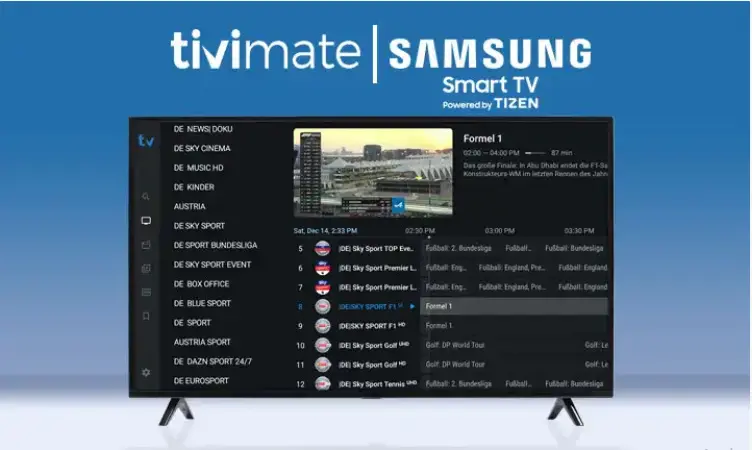
How to Install TiviMate on Samsung Smart TV: A Step-by-Step Guide
Looking for how to install TiviMate on Samsung Smart TV? You’re not alone. The key detail is that Samsung TVs use Tizen OS, while TiviMate is built for Android TV. This guide shows the best way to use TiviMate on a Samsung TV in 2026.
Short answer
You can’t install TiviMate directly on Samsung Smart TVs (Tizen). To use TiviMate, connect an Android-based device like a Fire TV Stick or Android TV box, then install and set up TiviMate there.
Can you install TiviMate directly on Samsung Smart TV?
No. Samsung Smart TVs run Tizen OS, and TiviMate is designed for Android TV. That’s why you won’t find the official TiviMate app in the Samsung App Store.
What this means
- TiviMate works on Android TV devices (including Fire TV).
- Samsung TVs don’t support Android TV apps natively.
- You need an Android-based streaming device connected via HDMI.
Best way to use TiviMate on Samsung Smart TV
The most reliable setup is to plug in an external streaming device and run TiviMate from there. This keeps the experience smooth and gives you full TiviMate features.
Recommended devices (2026)
- Fire TV Stick 4K / 4K Max
- Android TV Box
- Chromecast with Google TV
Why this works better
- Full Android app support
- Better performance than many built-in TV apps
- Easier updates + troubleshooting
Method 1: Install TiviMate using Fire TV Stick (Recommended)
This method is popular because Fire TV devices are affordable, fast, and simple to set up.
Step-by-step installation
- Plug in the Fire TV Stick to your Samsung TV’s HDMI port and power it on.
- Connect to Wi-Fi and finish the Fire TV onboarding setup.
- Install the Downloader app from the Amazon Appstore.
- Enable app installation permissions:Settings → My Fire TV → Developer Options → Install Unknown Apps → Allow Downloader
- Download and install TiviMate using Downloader (from a trusted source).
- Open TiviMate and proceed to playlist setup.
Safety tip
Only download apps from trusted sources. Avoid random APK sites and unknown links.
Method 2: Use an Android TV Box (Easiest if you already have one)
If your device includes Google Play (Android TV), installation is usually straightforward:
- Open Google Play Store
- Search TiviMate IPTV Player
- Install and open
- Continue with playlist and EPG setup
How to add IPTV playlist + EPG in TiviMate
Once TiviMate is installed, you’ll need your IPTV provider details. TiviMate is a player only and does not include channels.
Playlist options
- M3U URL (playlist link)
- Xtream Codes (server URL + username + password)
Setup steps
- Open TiviMate → Add Playlist
- Select M3U or Xtream Codes
- Enter your credentials carefully (avoid extra spaces)
- Add EPG if your provider supplies it
- Refresh channels and test playback
Best practice
- Use a stable connection (LAN is best).
- Keep at least 1GB free storage on the device.
- Update Fire OS / Android TV regularly.
Best IPTV app alternatives for Samsung Smart TV (Tizen)
If you prefer not to use an external device, you can try IPTV players available in the Samsung App Store (availability can vary by region).
Popular alternatives
- IBO Player
- SET IPTV
- Duplex IPTV
- Smart IPTV (where available)
What you may miss vs TiviMate
- Less customization
- Weaker playlist management
- Different EPG experience
Common issues & fixes
TiviMate won’t install
- Confirm you’re using an Android-based device (Fire TV / Android TV).
- Enable the correct installation permissions (Fire TV).
- Restart the device and try again.
IPTV buffering or freezing
- Use LAN instead of Wi-Fi if possible.
- Target 50+ Mbps stable internet.
- Restart router and streaming device.
Playlist not loading
- Double-check M3U/Xtream details (no typos).
- Remove extra spaces from username/password.
- Ask your provider for updated credentials if expired.
FAQ
Can I install TiviMate directly on Samsung TV?
No. Samsung uses Tizen OS, and TiviMate is an Android TV app.
What’s the best device for TiviMate on Samsung?
Fire TV Stick 4K (or an Android TV box) is typically the easiest setup.
Is TiviMate free?
There is a free version. Premium unlocks advanced features like multi-playlists, recording, and more.
Does TiviMate include channels?
No. TiviMate is a player only. You need an IPTV playlist from a provider.
Final thoughts
You can’t install TiviMate directly on a Samsung Smart TV, but you can still use it easily by connecting an Android-based streaming device. With a Fire TV Stick or Android TV box, you’ll get the full TiviMate experience—playlist management, EPG, favorites, and smooth playback