
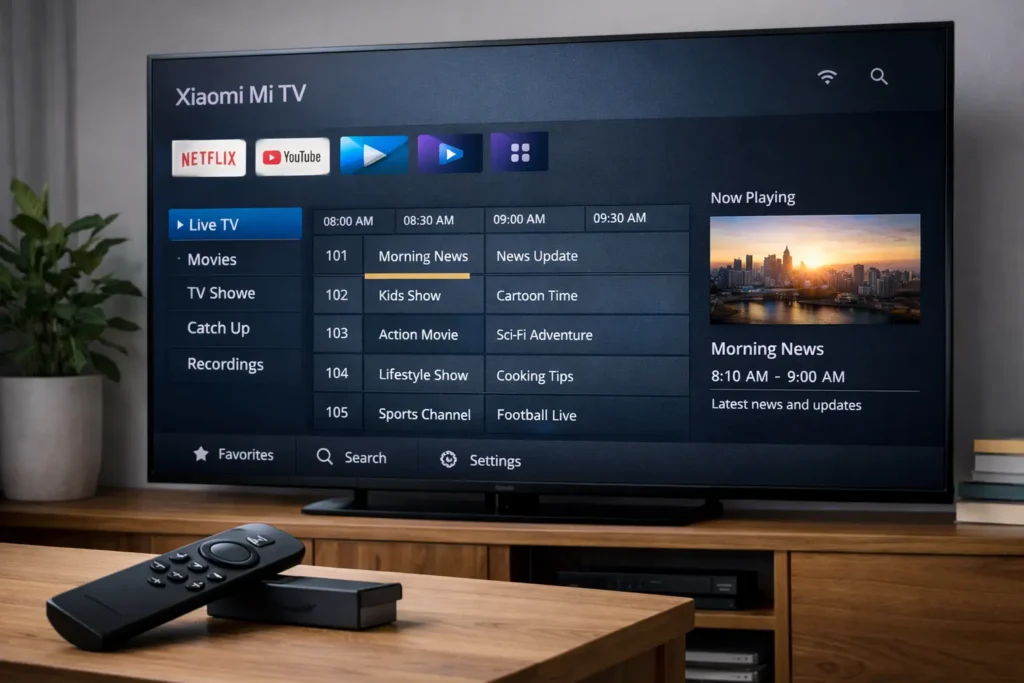
Installing TiviMate on Xiaomi Mi: The Ultimate Guide
Want the best way to install TiviMate on Xiaomi Mi devices in 2026? If you’re using a Xiaomi Mi TV, Mi Box S, or Mi TV Stick, you’re in luck—most Xiaomi devices run Android TV or Google TV, which works great with TiviMate.
Quick answer
On Xiaomi Mi TV/Mi Box, open Google Play Store, search TiviMate IPTV Player, install it, then add your IPTV playlist (M3U or Xtream Codes) and set up EPG if available.
Why use TiviMate on Xiaomi Mi?
Xiaomi Mi devices are popular because they offer a smooth Android TV experience at a good price. TiviMate is built for Android TV, so it feels like “real TV” with remote control navigation.
Main benefits
- Clean, modern IPTV interface
- Favorites and categories
- EPG (TV guide) support
- Multi-playlist support (Premium)
Best use cases
- Daily IPTV watching on the big screen
- Sports + fast channel switching
- Family-friendly favorites list
Supported Xiaomi Mi devices
You can typically install TiviMate on these Xiaomi devices:
- Xiaomi Mi TV (Android TV / Google TV models)
- Xiaomi Mi Box S
- Xiaomi Mi TV Stick
- Xiaomi Mi TV Stick 4K
Tip: If your Xiaomi device has Google Play Store, you’re good to go.
Method 1: Install TiviMate via Google Play Store (Recommended)
This is the safest and easiest installation method.
Step-by-step
- Turn on your Xiaomi Mi TV / Mi Box
- Open Google Play Store
- Search for TiviMate IPTV Player
- Click Install
- Open the app from your Apps list
Pro tip
After installing, pin TiviMate to your home screen for faster access.
Method 2: Install TiviMate via APK (Alternative)
Use this method only if you can’t find TiviMate in the Play Store or your device is not certified.
Safety tip
Only install APK files from trusted sources. Avoid random download links. Keep your system updated.
Step-by-step
- Download the TiviMate APK from a trusted source
- Go to Settings → Security → enable Install unknown apps
- Open a file manager and locate the APK
- Select the APK and install it
- Launch TiviMate and proceed with playlist setup
How to add IPTV playlist in TiviMate
TiviMate is a player only. It does not include channels. You must add a playlist from an IPTV provider.
Supported playlist types
- M3U URL (playlist link)
- Xtream Codes (server URL + username + password)
Setup steps
- Open TiviMate → choose Add Playlist
- Select M3U or Xtream Codes
- Enter your credentials carefully (no extra spaces)
- Wait for channels to load
- Test a few channels to confirm everything works
Setting up EPG (TV guide) on Xiaomi Mi
EPG shows what’s playing now and next. If your provider offers an EPG URL, add it in TiviMate settings.
EPG steps
- Open TiviMate Settings
- Go to EPG
- Add EPG source (URL) if needed
- Refresh EPG data
Tip
If EPG stays empty, verify the EPG URL with your provider or refresh the playlist and try again.
Best TiviMate settings for Xiaomi Mi (2026)
| Setting | Recommendation | Why it helps |
|---|---|---|
| Internet speed | 50+ Mbps stable | Reduces buffering on live streams |
| Connection | 5GHz Wi-Fi or LAN | More stable than 2.4GHz Wi-Fi |
| Free storage | 1GB+ | Prevents app crashes and slowdowns |
| Updates | Keep Android TV updated | Bug fixes + better stability |
| Restart routine | Weekly restart | Keeps system fast over time |
Common issues & fixes
TiviMate not showing in Play Store
- Update your Xiaomi system software
- Clear Google Play Store cache
- Try the APK method if needed
IPTV buffering on Xiaomi Mi
- Switch to 5GHz Wi-Fi or use Ethernet
- Restart router and Xiaomi device
- Test VPN on/off if you use one
Channels not loading
- Check playlist credentials for typos
- Confirm your IPTV subscription is active
- Refresh playlist and EPG data
Quick diagnosis
If Netflix/YouTube works but IPTV doesn’t, the issue is often provider-side (server load) or playlist credentials.
Legal note
TiviMate is a media player app. IPTV technology is legal, but the legality of streams depends on the provider and content licensing. Always use properly licensed services and follow local laws.
FAQ – Installing TiviMate on Xiaomi Mi
Can I install TiviMate on Xiaomi Mi TV Stick?
Yes. Mi TV Stick devices support Android TV apps, including TiviMate.
Is TiviMate free?
Yes, there’s a free version. Premium unlocks features like multiple playlists, backup/restore, and more.
Does TiviMate include channels?
No. You must add an IPTV playlist from a provider.
Why is IPTV buffering on Xiaomi Mi?
Usually due to Wi-Fi instability, low stable bandwidth, or provider server load. LAN and 50+ Mbps stable speed helps most.
Final thoughts
Installing TiviMate on Xiaomi Mi TV is simple because Xiaomi uses Android TV/Google TV. Use the Play Store method if possible, add your playlist and EPG, and optimize your connection (5GHz or LAN) for the smoothest IPTV experience in 2026.