
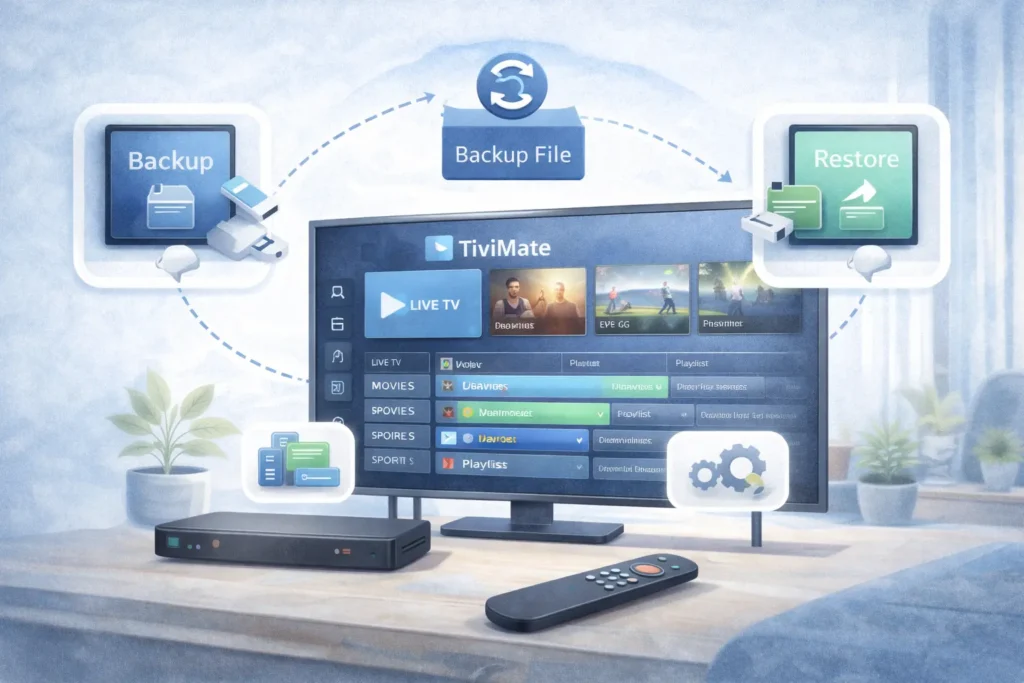
How to Back Up and Restore TiviMate Settings – Instructions [2026]
Knowing how to back up and restore TiviMate settings is essential for anyone who uses this popular IPTV player regularly. Whether you are upgrading your device, reinstalling the app, or switching to a new Android TV box, having a backup ensures that you don’t lose your playlists, channel settings, or customization preferences.
TiviMate provides a built-in backup feature that allows users to save their configuration and restore it later. This makes the setup process much easier and saves time.
In this guide, you will learn:
- How to back up TiviMate settings
- How to restore your settings on another device
- What data is included in the backup
- Common issues and troubleshooting tips
Why Back Up TiviMate Settings?
Backing up your TiviMate settings is important because it protects your configuration and IPTV setup.
Benefits of creating a backup include:
- Quick restoration after reinstalling the app
- Easy migration to a new streaming device
- Protection against accidental data loss
- Saving your playlists and preferences
If you spend time organizing channels, setting favorites, and customizing the interface, backing up your settings can save hours of work.
What Is Included in a TiviMate Backup?
The backup file stores most of your app configuration, including:
- IPTV playlists
- Channel groups
- Favorites
- TV guide (EPG) settings
- Appearance customization
- Playback settings
This allows you to restore your complete IPTV setup with just a few clicks.
How to Back Up TiviMate Settings
Step 1: Open TiviMate
Launch the TiviMate app on your Android TV or streaming device.
Step 2: Open Settings
Navigate to the Settings menu from the main screen.
Step 3: Select General
Inside the settings menu, choose the General option.
Step 4: Select Backup Data
Scroll down and click Backup Data.
Step 5: Choose Backup Location
Select where you want to save the backup file.
Common locations include:
- Internal storage
- USB storage
- External drive
- Cloud storage
Once the backup is completed, the file will be saved on your device.
How to Restore TiviMate Settings
Restoring settings is just as simple as creating a backup.
Step 1: Install TiviMate
First, install the TiviMate app on your device if it is not already installed.
Step 2: Open Settings
Launch the app and navigate to the Settings menu.
Step 3: Select Restore Data
Inside the General settings, choose Restore Data.
Step 4: Select Backup File
Locate the backup file that you previously saved.
Step 5: Confirm Restore
Confirm the restore process and wait for TiviMate to load your settings.
Once completed, all your playlists and settings should be restored.
How to Transfer Backup to Another Device
If you want to move your settings to another device, you can transfer the backup file.
Common transfer methods include:
- USB drive
- Cloud storage
- File transfer apps
- Network file sharing
After transferring the file, simply restore it on the new device.
Common Problems When Restoring TiviMate Backup
Backup File Not Found
If the backup file cannot be located, ensure it is saved in an accessible folder.
You may need a file manager app to locate it.
Backup Not Restoring Correctly
This can happen if the backup was created using a different version of the app.
Try updating TiviMate to the latest version before restoring.
Playlists Missing After Restore
If playlists are missing, verify that the backup file includes playlist data.
You may also need to refresh the playlist manually.
Tips for Managing TiviMate Backups
Here are some useful tips for managing backups.
- Create regular backups
- Store backups on external storage
- Keep multiple backup versions
- Update backups after major configuration changes
This ensures that you always have a reliable backup available.
Conclusion
Learning how to back up and restore TiviMate settings can save you time and protect your IPTV configuration. With the built-in backup feature, you can easily transfer your playlists, settings, and customizations to another device.
Whether you are reinstalling the app or upgrading your streaming device, using backups ensures that your IPTV setup remains safe and easy to restore.
FAQ
Does TiviMate have a backup feature?
Yes, TiviMate includes a built-in backup feature that allows users to save and restore their settings.
Where are TiviMate backups stored?
Backups are usually stored in your device’s internal storage or external storage location.
Can I transfer TiviMate settings to another device?
Yes, you can transfer the backup file to another device and restore it there.
Do I need TiviMate Premium for backup?
Yes, the backup and restore feature is available in the TiviMate Premium version.